This guide takes you from an empty account to a working redirect. Before you start, make sure you own or manage the domain you want to redirect and can change its DNS. Not sure? Read Is redirect.pizza for me?
Step 1: Create an account
Create a free account. No credit card required.
Step 2: Add your redirect
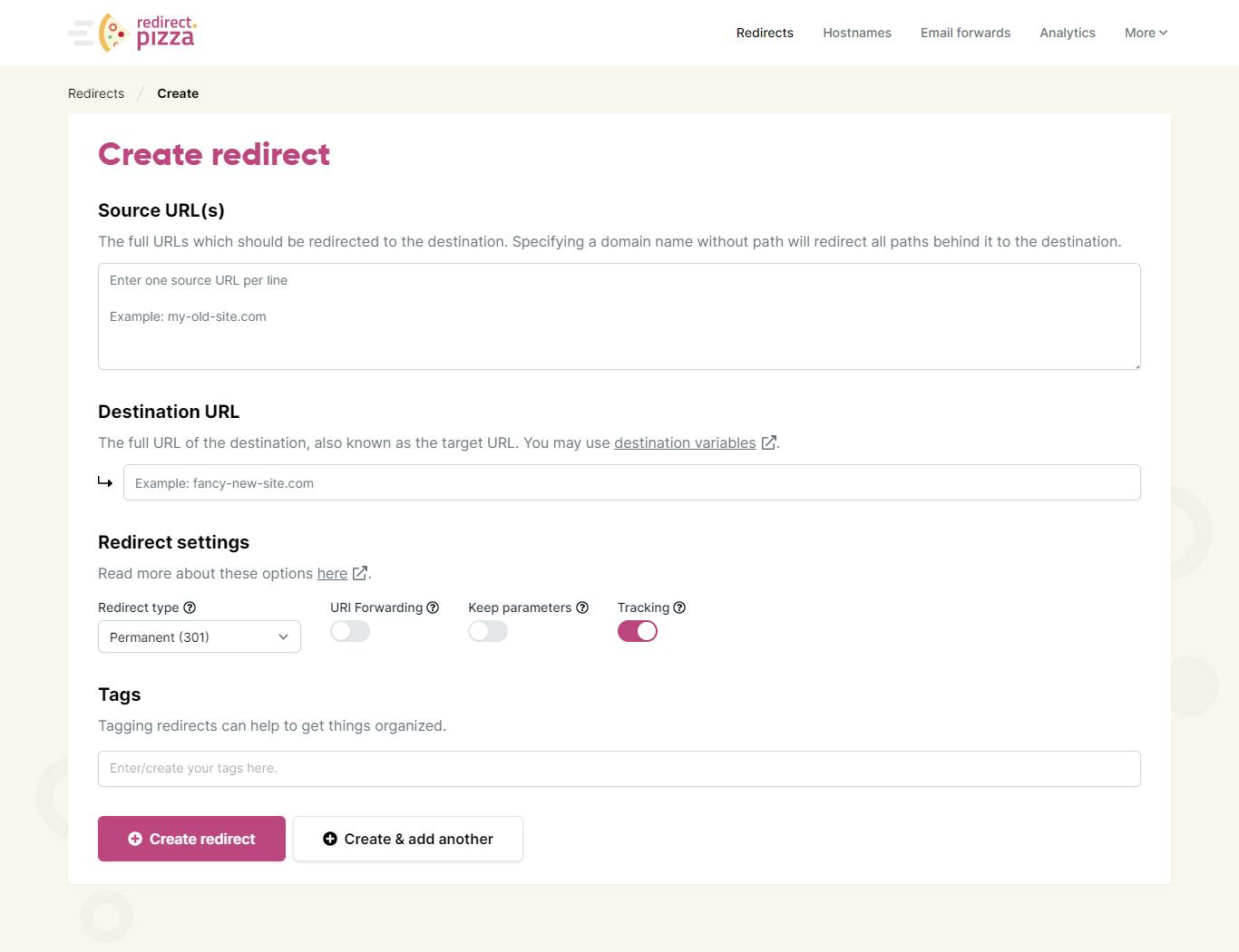
Enter the hostname you want to redirect in the Source URL field and the address it should go to as the destination. In this example we redirect redirect-pizza-example.xyz, a domain registered at GoDaddy.
We recommend adding both the apex (non-www) and the www hostname as separate sources, so visitors land in the right place no matter which one they type. Read why in Redirecting non-www to www.
By default, redirect.pizza creates a permanent 301 redirect and provisions an SSL certificate for the hostname. You can switch to a 302, 307, 308, frame or meta refresh redirect in the redirect settings.
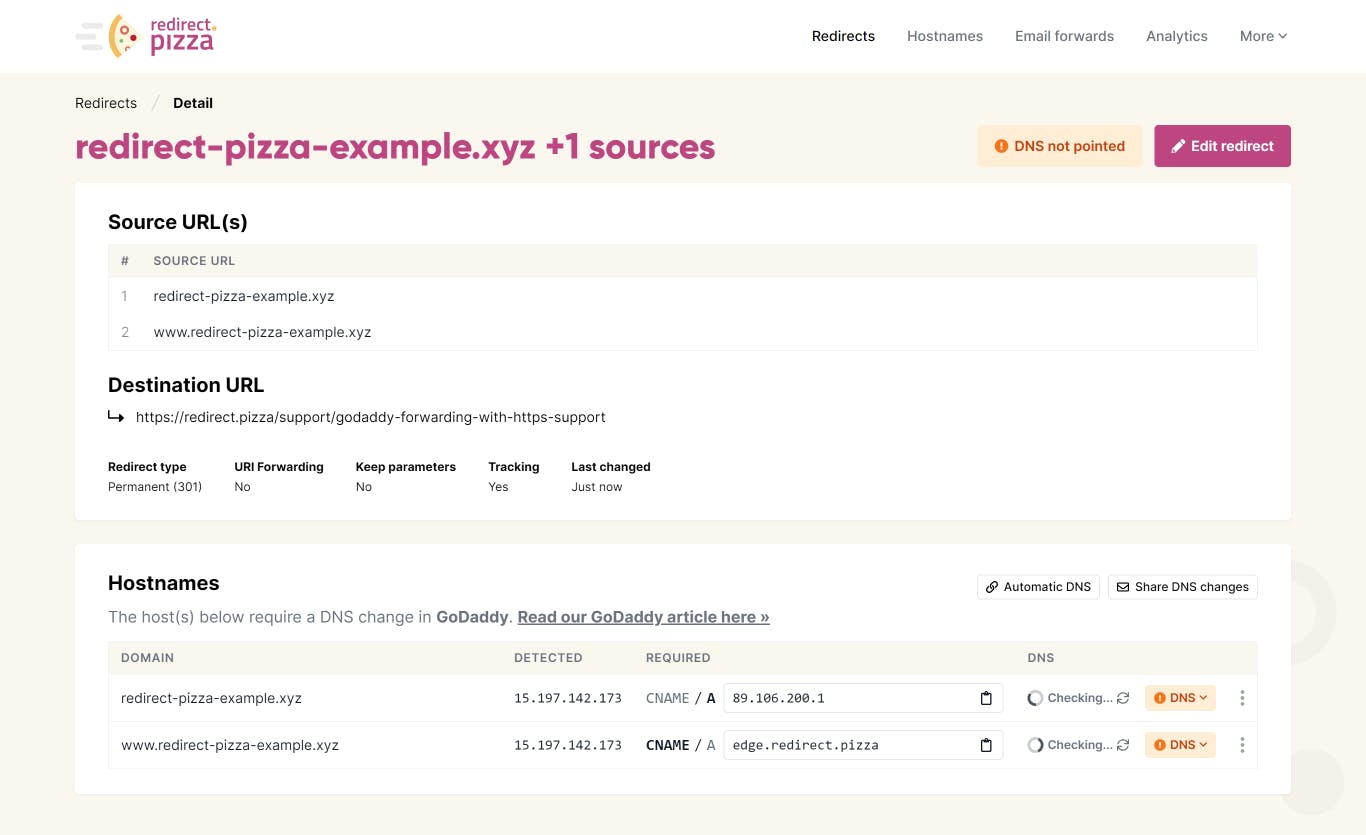
After saving, the hostname shows a DNS status of "checking": the detected DNS records don't match the required ones yet.
Step 3: Change the DNS
Add the required records at your DNS provider. That's usually your domain registrar, unless you use external nameservers such as Cloudflare. The exact records are listed under Hostnames in your account, and What are these DNS changes? explains what they do.
We have step-by-step walkthroughs for popular providers:
You'll find the full list on the support page. If your provider isn't listed, its support team can usually make the change for you when you share the required records. On the Pro plan and up, automatic DNS applies the records for you.
Step 4: Wait for the DNS to propagate
DNS changes take up to 24 hours to propagate, although it's usually much faster. You can follow the progress with a tool like WhatsMyDNS.
redirect.pizza keeps checking in the background. Once the records are detected, the hostname gets a green checkmark and we request the SSL certificate. Something not working as expected? See Troubleshooting new redirects.
Step 5: Done
Green checkmark? Traffic is now flowing through redirect.pizza, over both HTTP and HTTPS. Follow the results in your analytics.
